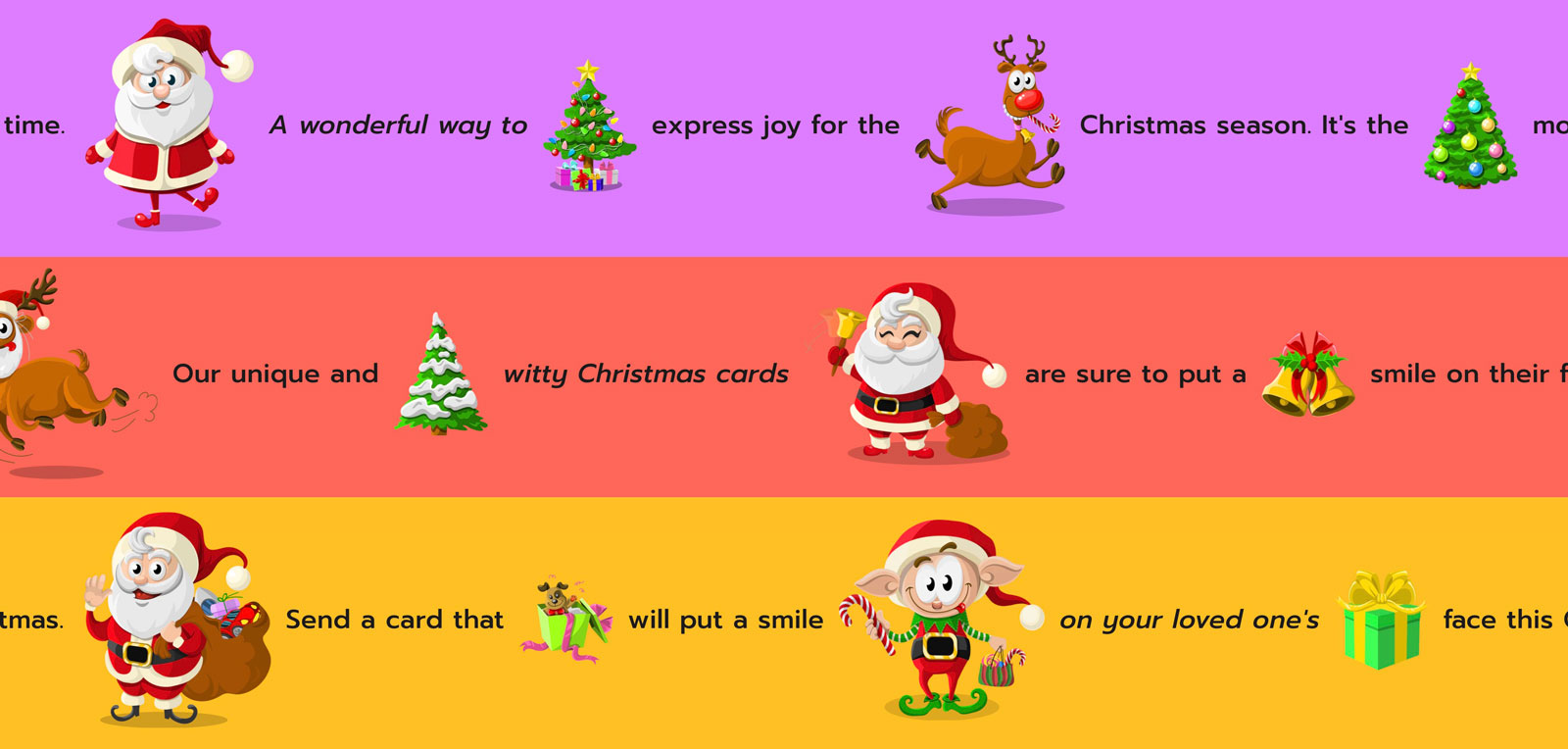
Overview
Scrolling bar has two types of blocks:
Section settings
| Setting |
Description |
| Section width |
Set the width of the section using the drop-down menu:
- Grid
- Full width
- Full width no gap
|
| Hide from home page |
Check to hide from home page. |
| Show top outline |
Displays the top outline of the section. |
| Show bottom outline |
Displays the bottom outline of the section. |
| Color scheme |
Set the color scheme of the section using the drop-down menu:
- Background
- Primary
- Secondary
- Tertiary
- Custom
|
| Background color |
Set the background of the section,visible when the Color scheme setting is set to Custom. |
| Text color |
Set the text of the section,visible when the Color scheme setting is set to Custom. |
| MARQUEE |
|
| Scroll direction |
Choose from 'Left to right' and 'Right to left'. |
| Scroll speed |
The scrolling speed of the section. |
| Pause on hover |
Pause scrolling when the mouse is over the section. |
| Background color |
Set the background of the section. |
| Top padding |
Set the top padding of the section. |
| Bottom padding |
Set the bottom padding of the section. |
Text block
| Setting |
Description |
| Text |
The scrolling text. |
| Link |
The URL that you want the text to link to. |
| Text color |
Set the text color. |
| Font size on desktop |
Set text size on desktop view. |
| Font size on mobile |
Set text size on mobile view. |
| Italic font |
Check italic. |
| Font weight |
Set the font weight of the text, choose from 300, 400, 500, 600, 700. |
Image block
| Setting |
Description |
| Image |
The main image for the banner. If the mobile image is not set, this is image is used to display on mobile devices too. |
| Edit alt text |
Click to set image alt text for search engine optimization and to describe the image for customers using screen readers. |
| Image width |
Set the width of the image. Defaults to 50%. |
| Link |
Give the image a link. |