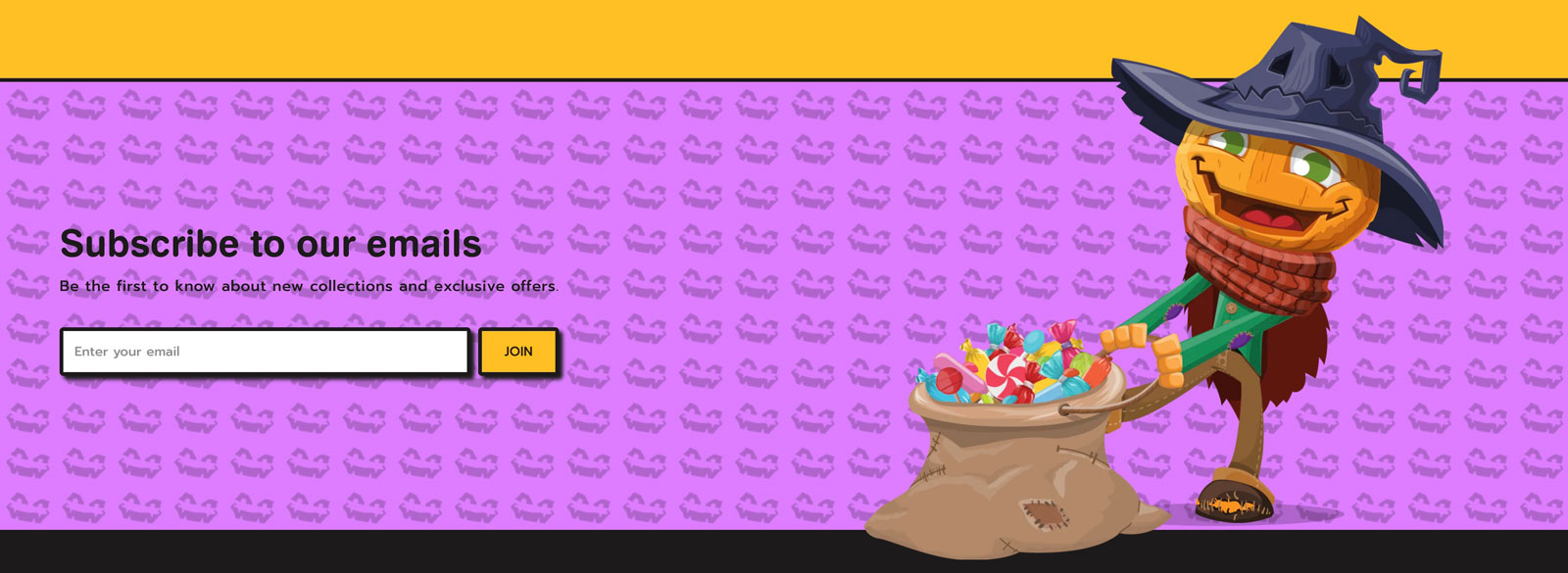
Overview
You can add a section where customers can enter their email address and subscribe to your newsletter or marketing. When a customer subscribes, a customer account is created in your Shopify admin.
The section comes with five default blocks:
- Heading
- Subheading
- Description
- Background image
- Stamp background
- Float icon
Section settings
| Setting |
Description |
| Section height |
Set the height of the section using the drop-down menu.
|
| Show top outline |
Displays the top outline of the section. |
| Show bottom outline |
Displays the bottom outline of the section. |
| Color scheme |
Set the color scheme of the section using the drop-down menu:
- Background
- Primay
- Secondary
- Tertiary
- Custom
|
| Background color |
Set the background of the section,visible when the Color scheme setting is set to Custom. |
| Text color desktop |
Set the text of the section,visible when the Color scheme setting is set to Custom. |
| Text color mobile |
Set the text of the section. |
| Content position |
Set the content position using the drop-down menu:
|
| Button style |
The style of the button. Choose from Primary and Secondary. |
Heading block
| Setting |
Description |
| Text |
The title for the section. |
| Size |
Set the font size of heading using the drop-down menu:
|
Subheading block
| Setting |
Description |
| Text |
Subheading text |
Description block
| Setting |
Description |
| Text |
The description for the section |
| Color |
Set the color for description text |
Background image block
| Setting |
Description |
| Image |
The background image for the section. |
| Edit alt text |
Click to set image alt text for search engine optimization and to describe the image for customers using screen readers. |
| Image width |
Set the width of the image. Defaults to 50%. |
| Float top |
Set the Float top of the image. Defaults to 72px. |
| Float bottom |
Set the float bottom of the image. Defaults to 72px. |
| Image position |
Set the position of the image using the drop-down menu, visible when the ‘Desktop logo’ setting is set to Left.
|
| IMAGE MOBILE |
|
| Image mobile |
The mobile image for the banner. If the image is not set, the above image is used. |
| Edit alt text |
Click to set image alt text for search engine optimization and to describe the image for customers using screen readers. |
Stamp background
| Setting |
Description |
| Stamp |
Stamp image |
| Edit alt text |
Click to set image alt text for search engine optimization and to describe the image for customers using screen readers. |
| Opacity |
Set the opacity of the stamp image. |
Float icon
| Setting |
Description |
| Image |
Float image |
| Edit alt text |
Click to set image alt text for search engine optimization and to describe the image for customers using screen readers. |
| Edit alt text |
Click to set image alt text for search engine optimization and to describe the image for customers using screen readers. |
| Image width |
Set the image width of the float image. |
| Horizontal position |
Set the horizontal position of the float image. |
| Vertical position |
Set the vertical position of the float image. |
| Opacity |
Set the opacity of the float image. |