Overview
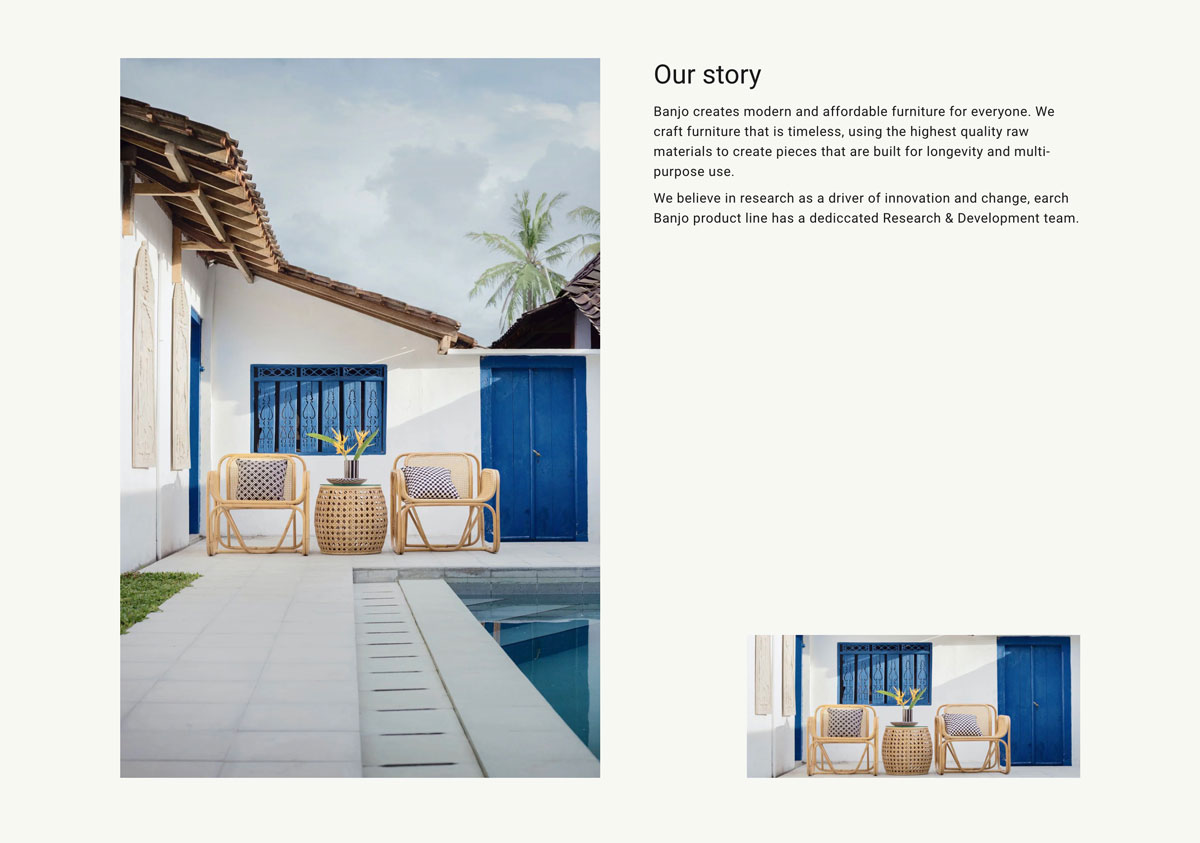
You can add a section that contains an image and a text block with an optional button to link customers to a new page. Pair text with an image to focus on your chosen product, collection, or blog post. Add details on availability, style, or even provide a review.
Section settings
| Setting |
Description |
| Section width |
Set the width of the section using the drop-down menu:
|
| Section spacing |
Set the spacing of the section using the drop-down menu:
|
| IMAGE |
|
| Image |
Click Select image to choose an image for the section. Click the Change button to change or remove the image |
| Edit alt text |
Click to set image alt text for search engine optimization and to describe the image for customers using screen readers. |
| Image position |
Choose between Left and Right. |
| TEXT |
|
| Text alignment |
Choose from Left, Center and Right. |
Heading block
| Setting |
Description |
| Text |
Title text for the section. |
| Size |
The font size of the heading: Small Medium Large(Default) |
Subheading block
| Setting |
Description |
| Text |
Subheading text |
Description block
| Setting |
Description |
| Text |
Displays paragraph-style text. |
Button block
| Setting |
Description |
| Label |
The text that displays on the button. |
| Link |
The URL that you want the button to link to. |
| Style |
The style of the button. Choose from Primary, Outline and Underline. |
Image
| Setting |
Description |
| Text |
Title text for the section. |
| Image position |
The position of the image: Top, Bottom |